Keyboard control: Game navigation
| Key | Function |
|---|---|
| Up | Go a halfmove back (move up in the Record). |
| Down | Go a halfmove forward (move down in the Record). |
| Page up | Go 10 moves back. |
| Page down | Go 10 moves forward. |
| Home | Go to the beginning of the Record. |
| End | Go to the end of the Record. |
| / | Go to a move number: Press / and type a move number. |
| Ctrl+J | Press the Jump button (placed below the Forward button). |
| Alt+X | Press the Start/Stop engine button. |
| Escape |
If a dialog is displayed, close the dialog. If a menu is opened, close the menu. Otherwise, refresh the main window. |
Keyboard control: Hotkeys
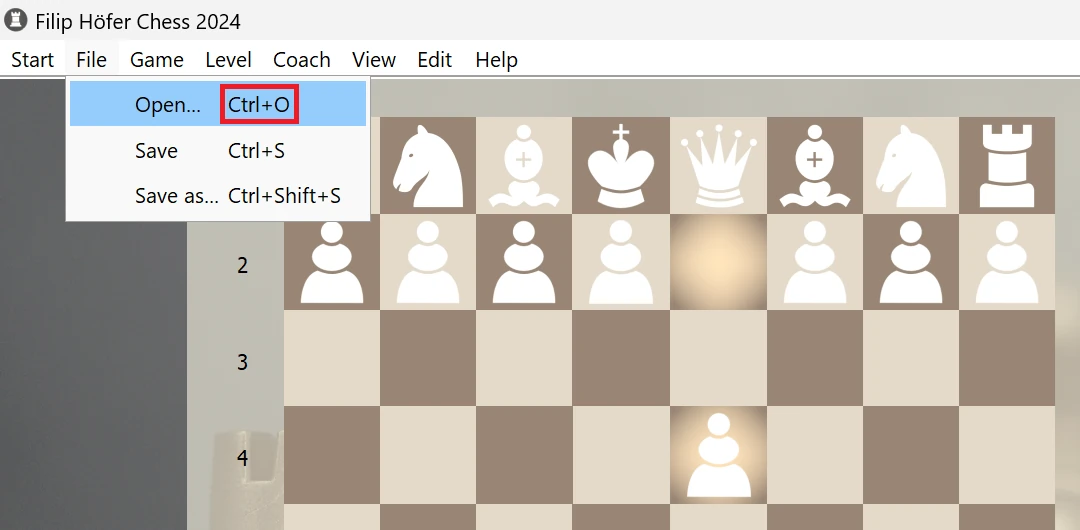
Frequently used menu items are assigned hotkeys. These are displayed directly in the main menu to the right of the item text. For example, the item File > Open... is assigned Ctrl+O. This means that the command can be executed by pressing and holding Ctrl, then pressing O, and releasing both keys.
Keyboard control: Menu navigation
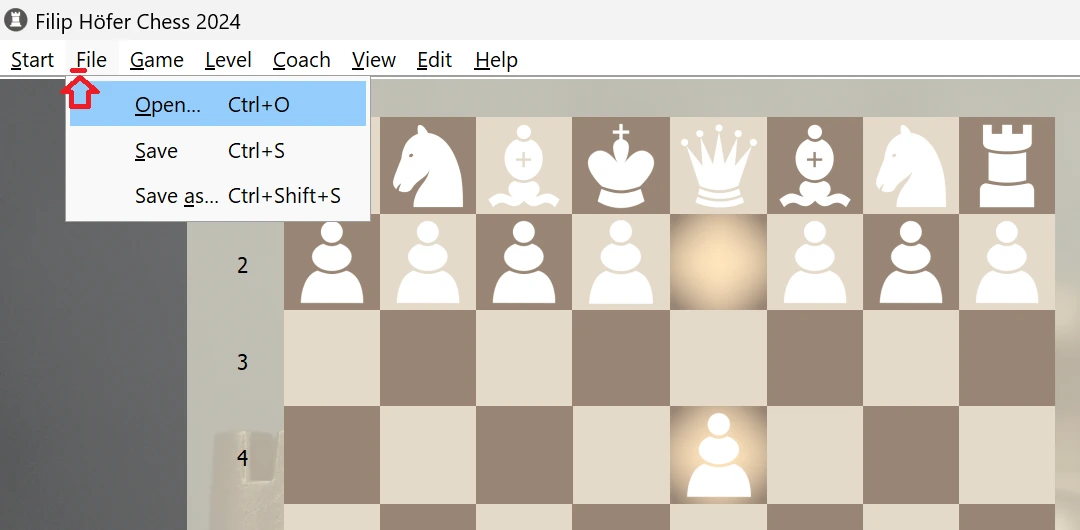
When you press and hold the Alt key, each menu has a letter underlined. While still holding the Alt key, press a key corresponding to one of the underlined letters and then release both keys. The appropriate menu will open. For example, Alt+F opens the File menu. You can then use arrow keys to navigate the menu, Enter to select an item or Escape to close the menu.
Mouse control: Drag & drop
There are three kinds of drag & drop operations:- Drag & drop a piece to make a move.
- Drag & drop a chess file onto the app window to open it.
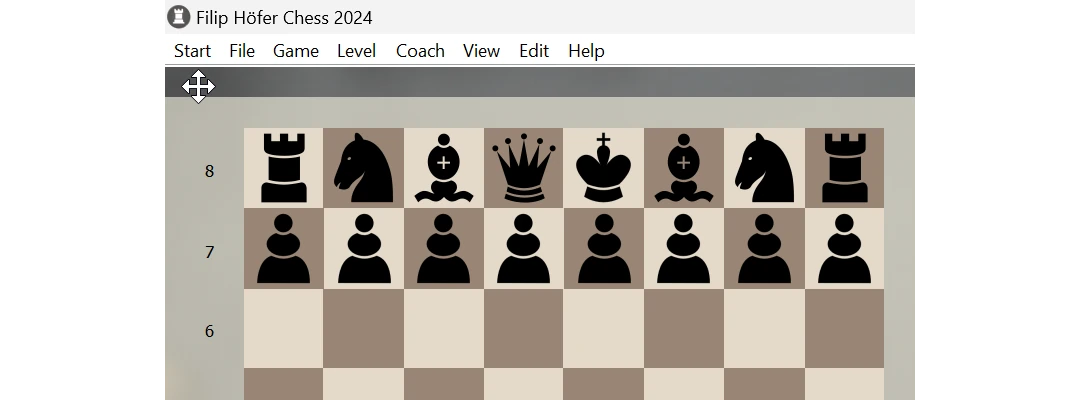
- Drag & drop the app window: If you click and hold on the uncovered picture background on one of the edges, the mouse pointer changes into four arrows. While holding the mouse button, you can move the app window as needed.
Edit mode
Place pawns to the first or last row to promote them. Via this technique, it is possible to set up a position with multiple queens/rooks/etc.
Closing dialog windows
- Hit Enter or Spacebar to push the highlighted button — typically OK.
- Hit Escape or click outside the dialog to close the dialog without confirming — equivalent to clicking the Cancel button.
Pro tip: Use Stockfish for position analysis

Stockfish is one of the strongest engines available. In Chess 2024, you can set it up as your Coach to make the Suggest move feature more powerful. Read this article on setting up Stockfish.